
Copy Parameter
Overview
Copy Parameter copies one or more user parameters from a source component to target components in the active assembly. Use it to quickly standardize parameter values and/or Key states across many parts and subassemblies without manually opening each file.
How It Works
Copy Parameter reads the selected user parameters from a source component document and then processes each target component using the selected command. You can copy only the Key state, only the value, or both Value and Key together.
If Create is enabled, missing user parameters can be created in target components. If Create is disabled, only parameters that already exist in the target are updated, and missing parameters are logged as failures for that component.
Targets can be selected interactively, from the current selection set, or by processing all components based on filtering options such as component type, nesting level, and optional name filtering.
Context Menus
This command does not provide the parameter-selection context menu behavior on text inputs. Parameter selection is done from the list in the dialog.
Usage Instructions
- Open an assembly.
- Start Copy Parameter.
- Select the source component file using the file browse button, or pick a source component in the graphics window.
- Select one or more parameters in the list.
- Choose the command: Copy Parameter Key, Copy Parameter Value, or Copy Parameter Key and Value.
- Optional: enable Create if you want missing parameters created in target components.
- Choose how to select target components and configure any filtering options. Use Preview to highlight targets.
- Click Apply to run.
Troubleshooting
- Apply is disabled: Select a valid source component file and select at least one parameter in the list.
- Nothing updates in Selection Set mode: Ensure the selection set contains components.
- Some components do not update: The parameter may be missing in the target (when Create is off), the target is filtered out, or the parameter cannot be copied into that document.
- Parameter value copies but Key does not (or vice versa): Verify the selected command matches what you want to copy.
Examples
Example: Standardize a Key parameter
Select a source component that already has the correct Key settings, select the parameter(s), then run Copy Parameter Key on all components you want to standardize.
Example: Push a new parameter value to selected components
Select a source component with the approved value, select the parameter(s), then run Copy Parameter Value using Select Components to update only a subset of the assembly.
Example: Create missing parameters while copying
Enable Create and run Copy Parameter Key and Value to ensure the parameter exists everywhere and matches the source definition.
Dialog Box Input
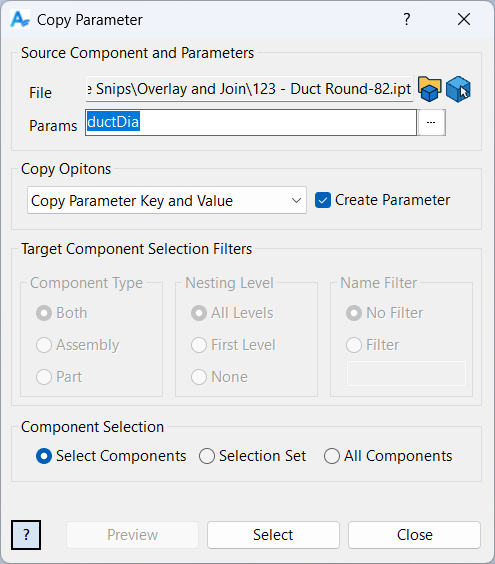
Source Component
Browse to a component file, or pick a component in the graphics window to use its file.
Parameter Selection
Select one or more parameters to copy (multi-select supported).
Command
Choose Copy Parameter Key, Copy Parameter Value, or Copy Parameter Key and Value.
Create
When enabled, missing parameters may be created in target components.
Component Selection
Choose how target components are selected and filtered (see Filtered Select).
Samples
See Sample Copy Parameter for an example, and Samples Summary for where sample files are installed.
